
Vtp

22 June, 2023

FEATURES AND FUNCTIONS OF POWER POINT

POWER POINT
When effectively planned and used, PowerPoint (or similar tools, like Google Slides) can enhance instruction. People are divided on the effectiveness of this ubiquitous presentation program—some say that PowerPoint is wonderful while others bemoan its pervasiveness. No matter which side you take, PowerPoint does offer effective ways to enhance instruction when used and designed appropriately.
PowerPoint can be an effective tool to present material in the classroom and encourage student learning. You can use PowerPoint to project visuals that would otherwise be difficult to bring to class. For example, in an anthropology class, a single PowerPoint presentation could project images of an anthropological dig from a remote area, questions asking students about the topic, a chart of related statistics, and a mini quiz about what was just discussed that provides students with information that is visual, challenging, and engaging.
PowerPoint can be an effective tool to present material in the classroom and encourage student learning.
This section is organized in three major segments: Part I will help faculty identify and use basic but important design elements, Part II will cover ways to enhance teaching and learning with PowerPoint, and Part III will list ways to engage students with PowerPoint.
PART I: Designing the PowerPoint Presentation
Accessibility
Student accessibility—students with visual or hearing impairments may not be able to fully access a PowerPoint presentation, especially those with graphics, images, and sound.
Use an accessible layout. Built-in slide template layouts were designed to be accessible: “the reading order is the same for people with vision and for people who use assistive technology such as screen readers” (University of Washington, n.d.). If you want to alter the layout of a theme, use the Slide Master; this will ensure your slides will retain accessibility.
Before class: students might like having materials available to help them prepare and formulate questions before the class period.
During class: you could distribute a handout with three slides and lines for notes to encourage students to take notes on the details of your lecture so they have notes alongside the slide material (and aren’t just taking notes on the slide content).
After class: some instructors wait to make the presentation available after the class period so that students concentrate on the presentation rather than reading ahead on the handout.
Never: Some instructors do not distribute the PowerPoint to students so that students don’t rely on access to the presentation and neglect to pay attention in class as a result.
Notes Pages. Detailed notes can be printed and used during the presentation, or if they are notes intended for students, they can be distributed before the presentation.
Outline View. PowerPoint presentations can be printed as an outline, which provides all the text from each slide. Outlines offer a welcome alternative to slide handouts and can be modified from the original presentation to provide more or less information than the projected presentation.
The Presentation
Alley, Schreiber, Ramsdell, and Muffo (2006) suggest that PowerPoint slide headline design “affects audience retention,” and they conclude that “succinct sentence headlines are more effective” in information recall than headlines of short phrases or single words (p. 233). In other words, create slide titles with as much information as is used for newspapers and journals to help students better understand the content of the slide.
.
PART II: Enhancing Teaching and Learning with PowerPoint
Class Preparation
PowerPoint can be used to prepare lectures and presentations by helping instructors refine their material to salient points and content. Class lectures can be typed in outline format, which can then be refined as slides. Lecture notes can be printed as notes pages (notes pages: Printed pages that display author notes beneath the slide that the notes accompany.) and could also be given as handouts to accompany the presentation.
Multimodal Learning
Using PowerPoint can help you present information in multiple ways (a multimodal approach) through the projection of color, images, and video for the visual mode; sound and music for the auditory mode; text and writing prompts for the reading/writing mode; and interactive slides that ask students to do something, e.g. a group or class activity in which students practice concepts, for the kinesthetic mode (see Part III: Engaging Students with PowerPoint for more details). Providing information in multiple modalities helps improve comprehension and recall for all students.
Providing information in multiple modalities helps improve comprehension and recall for all students.
Type-on Live Slides
PowerPoint allows users to type directly during the slide show, which provides another form of interaction. These write-on slides can be used to project students’ comments and ideas for the entire class to see. When the presentation is over, the new material can be saved to the original file and posted electronically. This feature requires advanced preparation in the PowerPoint file while creating your presentation. For instructions on how to set up your type-on slide text box, visit this tutorial from AddictiveTips.  
Write or Highlight on Slides
PowerPoint also allows users to use tools to highlight or write directly onto a presentation while it is live. When you are presenting your PowerPoint, move your cursor over the slide to reveal tools in the lower-left corner. One of the tools is a pen icon. Click this icon to choose either a laser pointer, pen, or highlighter. You can use your cursor for these options, or you can use the stylus for your smart podium computer monitor or touch-screen laptop monitor (if applicable). 
Just-In-Time Course Material
You can make your PowerPoint slides, outline, and/or notes pages available online 24/7 through Blackboard, OneDrive, other websites. Students can review the material before class, bring printouts to class, and better prepare themselves for listening rather than taking a lot of notes during the class period. They can also come to class prepared with questions about the material so you can address their comprehension of the concepts.

PART III: Engaging Students with PowerPoint
The following techniques can be incorporated into PowerPoint presentations to increase interactivity and engagement between students and between students and the instructor. Each technique can be projected as a separate PowerPoint slide.
Running Slide Show as Students Arrive in the Classroom
This technique provides visual interest and can include a series of questions for students to answer as they sit waiting for class to begin. These questions could be on future texts or quizzes.
Opening Question: project an opening question, e.g. “Take a moment to reflect on ___.”
Think-Pair-Share can be projected at different intervals of a presentation to allow students to reflect on and discuss with a partner what has been presented.
Think of what you know about ___.
Turn to a partner and share your knowledge about ___.
Share with the class what you have discussed with your partner.
Focused Listing helps with recall of pertinent information, e.g. “list as many characteristics of ___, or write down as many words related to ___ as you can think of.”
Brainstorming stretches the mind and promotes deep thinking and recall of prior knowledge, e.g. “What do you know about ___? Start with your clearest thoughts and then move on to those what are kind of ‘out there.’”
Questions: ask students if they have any questions roughly every 15 minutes. This technique provides time for students to reflect and is also a good time for a scheduled break or for the instructor to interact with students.
Note Check: ask students to “take a few minutes to compare notes with a partner,” or “…summarize the most important information,” or “…identify and clarify any sticking points,” etc.
Questions and Answer Pairs: have students “take a minute to come with one question then see if you can stump your partner!”
The Two-Minute Paper allows the instructor to check the class progress, e.g. “summarize the most important points of today’s lecture.” Have students submit the paper at the end of class.
“If You Could Ask One Last Question—What Would It Be?” This technique allows for students to think more deeply about the topic and apply what they have learned in a question format.
A Classroom Opinion Poll provides a sense of where students stand on certain topics, e.g. “do you believe in ___,” or “what are your thoughts on ___?”
Muddiest Point allows anonymous feedback to inform the instructor if changes and or additions need to be made to the class, e.g. “What parts of today’s material still confuse you?”
Most Useful Point can tell the instructor where the course is on track, e.g. “What is the most useful point in today’s material, and how can you illustrate its use in a practical setting?”
POSITIVE FEATURES OF POWERPOINT
PowerPoint saves time and energy—once the presentation has been created, it is easy to update or modify for other courses.
PowerPoint is portable and can be shared easily with students and colleagues.
PowerPoint supports multimedia, such as video, audio, images, and
PowerPoint supports multimedia, such as video, audio, images, and animation.
Potential Drawbacks of PowerPoint
PowerPoint could reduce the opportunity for classroom interaction by being the primary method of information dissemination or designed without built-in opportunities for interaction.
PowerPoint could lead to information overload, especially with the inclusion of long sentences and paragraphs or lecture-heavy presentations with little opportunity for practical application or active learning.
PowerPoint could “drive” the instruction and minimize the opportunity for spontaneity and creative teaching unless the instructor incorporates the potential for ingenuity into the presentation. 
Summary
As with any technology, the way PowerPoint is used will determine its pedagogical effectiveness. By strategically using the points described above, PowerPoint can be used to enhance instruction and engage students.

07 June, 2023

ADVICE TO ALL EMPLOYEES

ADVICE TO ALL EMPLOYEES  
1. Build a home earlier. Be it rural home or urban home. Building a house at 50 is not an achievement. Don't get used to government houses. This comfort is so dangerous. Let all your family have good time in your house.
 
2. Go home. Don't stick at work all the year.  You are not the pillar of your department.  If you drop dead today, you will be replaced immediately and operations will continue.  Make your family a priority.

3. Don't chase promotions.  Master your skills and be excellent at what you do. If they want to promote you, that's fine if they don't,  stay positive to your personal.
development.

4. Avoid office or work gossip. Avoid things that tarnish your name or reputation. Don't join the bandwagon that backbites  your bosses and colleagues. Stay away from negative gatherings that have only people as their agenda.

5. Don't ever compete with your bosses.  You will burn your fingers.  Don't compete with your colleagues, you will fry your brain.

6. Ensure you have a side business.  Your salary will not sustain your needs in the long run.

7. Save some money. Let it be deducted automatically from your payslip. 

8. Borrow a loan to invest in a business or to change a situation not to buy luxury. Buy luxury from your profit.

9. Keep your life,marriage and family private. Let them stay away from your work. This is very important.  

10. Be loyal to yourself  and believe in your work. Hanging around your boss will alienate you from your colleagues and  your boss may finally dump you when he leaves. 

11. Retire early.  The best way to plan for your exit was when you received the employment letter. The other best time is today.  By 40 to 50 be out. 

12. Join work welfare and be an active member always. It will help you a lot when  any eventuality occurs.

13.Take leave days utilize them by developing yr future home or projects..usually what you do during yr leave days is a reflection of how you'll live after retirement..If it means you spend it all holding a remote control watching series on Zee world, expect nothing different after retirement.

14. Start a project whilst still serving or working. Let your project run whilst at work and if it doesn't do well, start another one till it's running viably. When your project is viably running then retire to manage your business. Most people or pensioners fail in life because they retire to start a project instead of retiring to run a project. 

15. Pension money is not for starting a project or buy a stand or build a house but it's money for your upkeep or to maintain yourself in good health. Pension money is not for paying school fees or marrying a young wife but to look after yourself.

16. Always remember, when you retire never be a case study for living a miserable life after retirement but be a role model for colleagues to think of retiring too. 
17. Don't retire just because you are finished or you are now a burden to the company and just wait for your day to die. Retire young or whilst energetic to enjoy waking up for a cup of coffee, enjoy the sun, receive money from your business, visit nice place that you missed and spend good time with family. Those who retire late, spend about 95% of their time at work than with their family and that's why they see it difficult to spend time with their family when they retire but end looking for another job till they die. If they don't get another job, they die early.

18. Retire at your house than at government accommodation so that when you retire you can easily fit into the society that raised you. It's not easy to adjust to live in a location after spending more years at company house or at government house.

19. Never let your employment benefits make you forget about your retirement. Employment benefits are just meant to make you relax, get finished whilst time is moving. Remember when you retire no one will call you boss if you don't have a viable business.

20. Don't hate to retire because one day you will retire either voluntarily or involuntarily. 

Hope this will help you look at life positively

20 April, 2023

Jamb Examination Slip printing Date

JAMB Reprinting Slip Date 2023/2024 Is Out & How to Reprint JAMB Exam slip at the official Portal or visit Bem T Celestial Computers Tyowanye

JAMB Reprint slip

Many Candidates that Registered for the joint Admission and Matriculation Board JAMB, UTME are searching to know JAMB 2023 reprinting of exam slip date and CBT Centres. If you are interested in knowing when to Reprint your JAMB exam slip check hereunder.

The slip will contain all the information needed for the exams for every candidate. Make sure you follow the instructions and the details here in JAMB Reprinting date and CBT exams details.

When is JAMB Reprinting Starting for 2023

This question is all over the internet from candidates seeking to know the date that JAMB slip Reprinting will start. Worry no more, all the details from the JAMB Reprinting portal for 2023 is made available here

ATTENTION! JAMB Exams slip Reprint will start from 22nd April, 2023. The main UTME CBT exams has been rescheduled to commence on 25th April, 2023 till 2nd May 2023. All candidates are expected to reprint on time so as to be aware of their exam centres and Time.

How to Reprint JAMB Slip 2023/2024

The following steps are applicable while trying to reprint for JAMB:

  • Login to the Email address you used to create your JAMB Profile
  • Look for an Email from sender “JAMB” containing Exam Date and Center
  • Download it to your phone/computer or print it out from your email

RECOMMEND:

JAMB Reprint Date 2023

As earlier stated the joint Admission and Matriculation Board, JAMB has made it possible that all candidates can reprint form 22nd April, 2023.

How to check JAMB CBT Exams Centres while Reprinting

The following procedure are use to check jamb cbt Centres:

  • Visit the slip reprinting portal.
  • Input your JAMB registration Number, Phone Number or Email Address
  • Click “Print Examination Slip”
  • CandidateJAMB Exam Centre, Date and Time will be displayed
  • You can download it or print it out from the page.

06 April, 2023

NEW CLOSING DATE FOR NDLEA APPLICATION

The National Drug Law Enforcement Agency on Thursday extended the deadline for the ongoing recruitment application by one week.


The online application portal, which opened on Sunday, March 12 and was initially scheduled to close on Saturday, April 8, will now close on Monday, April 17, 2023, due to the extension.

The Director, Media & Advocacy, NDLEA Headquarters, Femi Babafemi, who disclosed the extension in a statement on Thursday, said the extension would enable applicants having challenges with the process to complete their application.

He added that the extension was approved by the NDLEA Chairman and Chief Executive, Brig. Gen. Mohammed Buba Marwa (retd.).

“This will enable applicants who are yet to complete their application process to do so and those interested but yet to sign up to also take advantage of the extra days to fill their application on the portal,” the statement added.

01 April, 2023

Watch Wrestle Mania live today

Do you want to watch live the wrestle Mania?
https://www.facebook.com/thebrocklesnar/videos/746631167128051/?app=fbl

Npc Recruitment Portal 2 Simple Method To Edit Application Status

Npc Recruitment Portal 2 Simple Method To Edit Application Status

npc recruitment portal – Are there any changes you would like to make to your National Population Commission (NPC) application? If you answered “yes,” then you should read this material. In this post, we’ll take you step-by-step through the process of amending your NPC application.

Some applicants submitted their resumes after their first training had concluded, while others have moved since submitting their previous application; in these cases, they can modify their resumes to change their job title to “enumerator” or “supervisor,” as well as their new location.

If your profile is accurate, rest certain that you will be accepted before or during the NPC training; but if it contains an error, only God can help you.

Hence, follow the instructions below if you need to make any modifications in addition to updating your NIN.

How To Edit Your NPC Application On The NPC Portal

Check out the NPC portal: Start by opening your favorite web browser and going to the NPC portal. Make sure your internet connection is reliable.

To begin an application, click the “Start Application” button on the portal’s homepage after you have logged in.

Once you’ve clicked the “Start Application” button, choose “Resume Application” from the selection menu that displays.

Fill in your NPC Application ID: Fill out the field provided with your NPC application ID. Your application ID can be found in the confirmation email you get after submitting your application.

Following the entry of your application ID, select “Proceed” to move forward.

Edit the URL: Once you’ve clicked on “Proceed,” the URL in your web browser will change.

To edit your details, simply add “/prev” (without quotes) after the “ng” in the URL. For example, if the URL is “https://npcregistration.org.ng/apply/123456”, you should edit it to read “https://npcregistration.org.prev/apply/123456”. This will take you to the page where you can edit your personal details.

Click here  to get this book

Or Use This Another Simple Method To Edit NPC Application,

  • How to edit your details on the NPC portal
  • Go to the NPC portal,
  • Click “Start Application,”
  • Select “Resume application”,
  • Enter your NPC Application ID,
  • Click “Proceed”
  • Edit the URL after you click on proceed, and put “/prev” without quotes after the URL where “ng” should be.

Make the necessary modifications to your personal information once you’ve reached the page where you can amend your details.

Changes to be submitted: After making the changes, carefully check them to make sure they are accurate. To save your changes, click the “Submit” button.

Use this Link to enter NPC application Portal https://2023censusadhocrecruitment.nationalpopulation.gov.ng


25 March, 2023

NIGERIAN NAVY RECRUITMENT 2023

Nigerian Navy

YOU ARE REQUIRED TO READ THE GUIDELINES UNTIL THE END BEFORE YOU BEGIN THE APPLICATION
Nigerian Navy

19 March, 2023

LIST OF APC, DPD THAT HAVE WON SO FAR

As the collation of the 2023 Governorship election continues across state in Nigeria, here is a list of result won and lost so far far by All Progress Congress (APC), the People's Democratic Party and others.

18 March, 2023

HOW TO FLASH DEAD ANDROID PHONE

4 Ways to Flash Dead Android Phone Safely
phone is considered to be dead when it becomes completely unresponsive and refuses to switch on. Similarly, an Android phone is said to be dead when it does not boot up. You may try to switch it on several times by pressing the power button but in vain. You will see no sign of the phone’s logo or anything like a welcome screen. The Android phone’s screen remains black and does not illuminate when you try to turn it on. Interestingly, even when you charge this dead device, it does not show that it is getting charged.

You can download a complete guide and the software here: https://paystack.com/buy/systemphone-management-hifcxa

Many people regard this as a battery issue and many think of it as a temporary software crash. There are users who also seem to believe that this is because of a virus attack. However, if you are looking for ways which tell you how to fix the dead Android phone, you must understand that a dead phone or device can be cured by flashing a custom firmware safely. If you are keen to know, how to flash a dead Android phone or how to flash dead Android phone using PC here are ways to help you.
Given below are three techniques to flash your Android phone safely depending upon which phone you are using. It may seem time-consuming and tedious, but we can assure you that it works. So, move ahead and read on to learn about flashing a new firmware your Samsung Galaxy, MTK Android and Nokia phone safely.

Part 1: How to flash Samsung Galaxy in one click?

Part 2: How to flash Samsung Galaxy dead phone with Odin?

Part 3: How to flash MTK Android dead phone with SP Flash tool?

Part 4: How to flash Nokia dead phone with Phoenix tool?

Part 1: How to flash Samsung Galaxy in one click

While you are worried about how to flash Samsung Galaxy instantly with a single click, Bem T- System Repair (Android) swiftly makes its way with a galore of options for you. This amazing tool from Wondershare can fix plethora of Android system issues such as crashing of apps, black screen of death, failed system update etc. Moreover, it can also get your device out of boot loop, unresponsive bricked Android mobiles as well as stuck at Samsung logo.

Step by step Tutorial
We are going to explain, how to flash dead Android phone using PC using Dr.Fone - System Repair (Android)

Note: Before you understand how to flash Dead Android phone, take a backup your data and then proceed to avoid any data loss.

Phase 1: Prepare your Android device

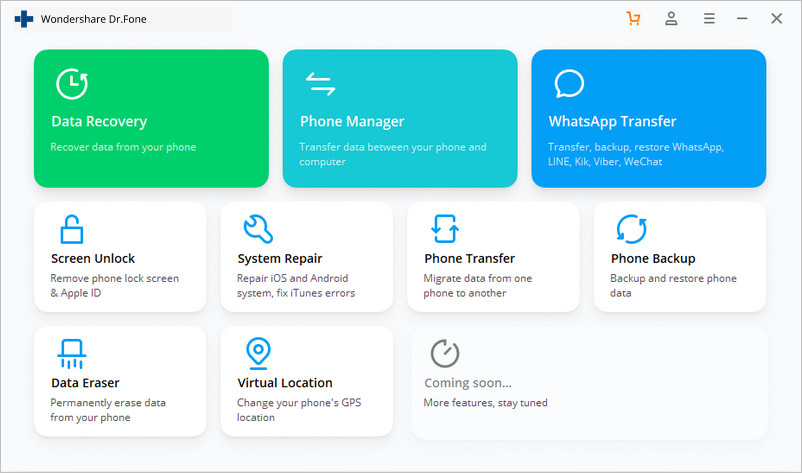
Step 1: Once you have downloaded and installed Dr.Fone, launch it. From the main menu, tap on the ‘System Repair’ and get your Android device connected to it.
how to flash Dead Android phone


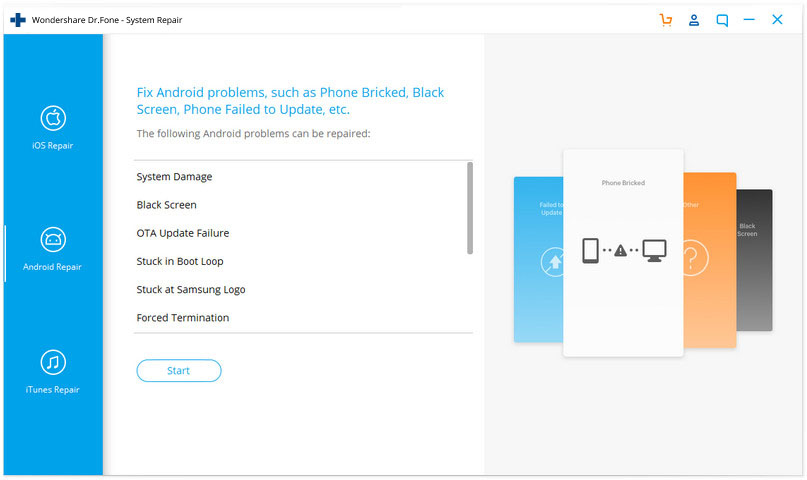
Step 2: Click ‘Android Repair’ from the available options, and then press the ‘Start’ button to fix Dead Android phone by flashing it.


android repair to flash dead phone

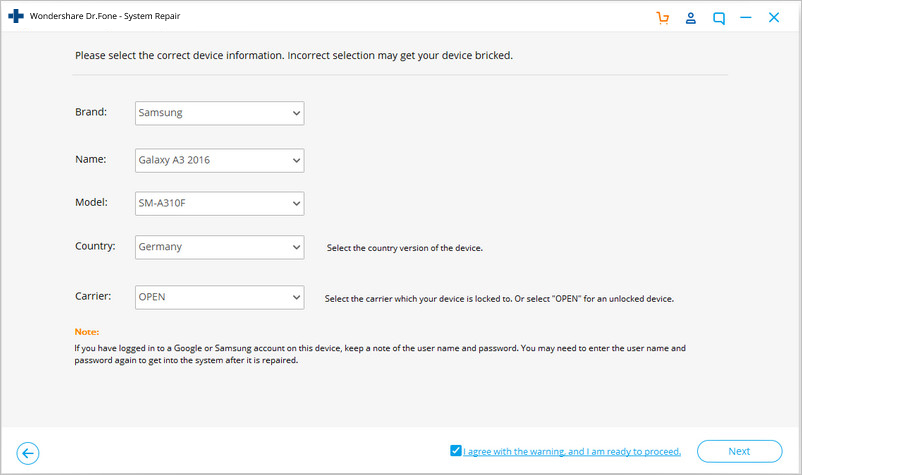
Step 3: On the device information screen, pick the appropriate device brand, name, model and other details followed by tapping the ‘Next’ button.


choose brand info

Phase 2: Put Android device in Download mode to start repair.
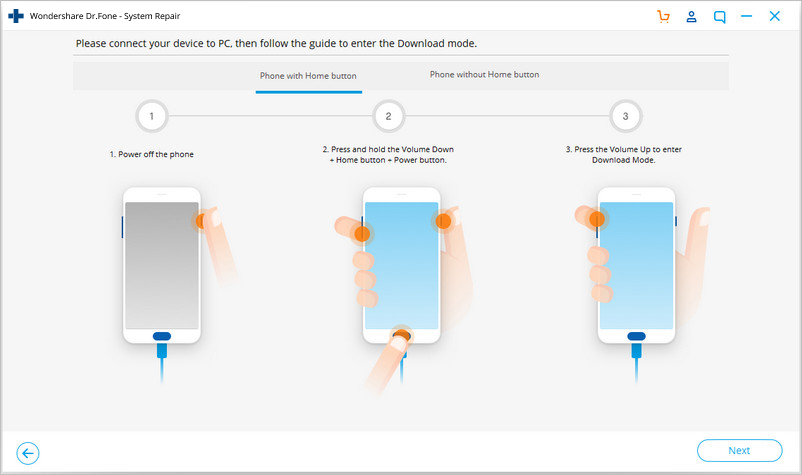
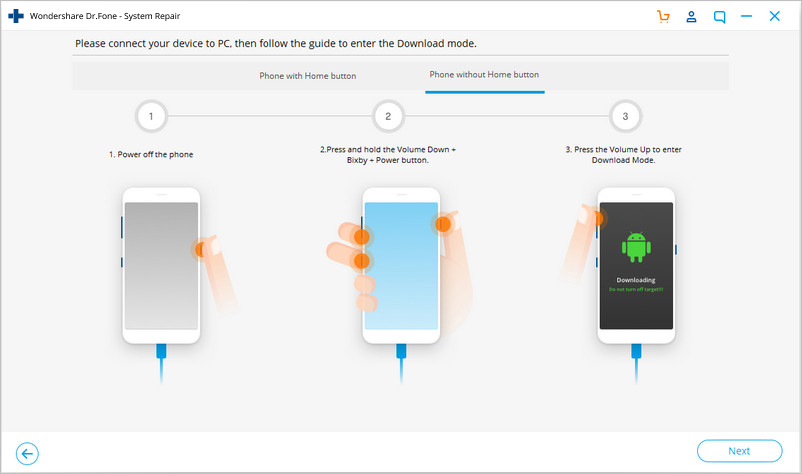
Step 1: It is essential to boot your Android device in Download mode prior to repairing.
  • If the device has a ‘Home’ button: Turn it off and then hold down the ‘Volume Down’, ‘Home’, and ‘Power’ buttons altogether for 5-10 seconds. Un-hold all of them and hit the ‘Volume Up’ button for entering ‘Download’ mode.
  • flash android with home key
  • In the absence of a ‘Home’ button: Switch off the Android device and hold the ‘Volume Down’, ‘Bixby’, and ‘Power’ buttons for 5 to 10 seconds, then release them. Hit ‘Volume Up’ button for entering ‘Download’ mode.


flash android with no home key

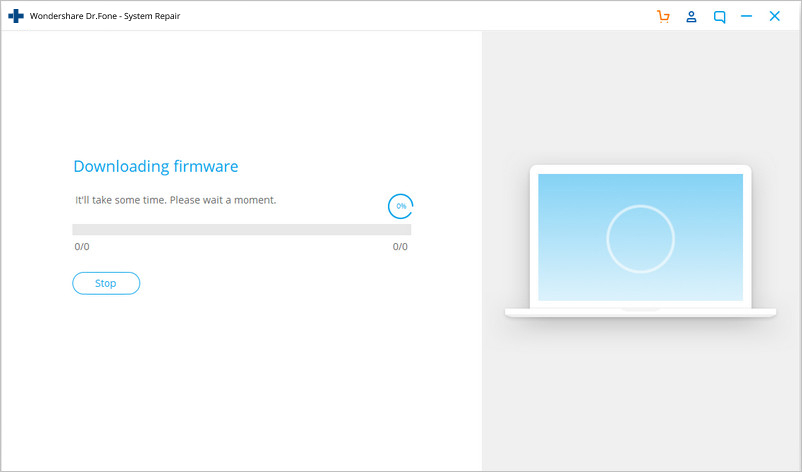
Step 2: Press the ‘Next’ button for initiating firmware download.


flashing samsung galaxy

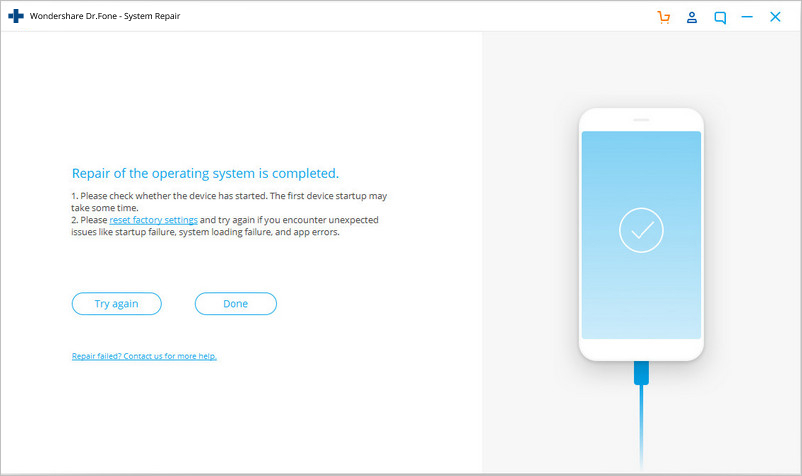
Step 3: Once the firmware gets downloaded and verified Dr.Fone - System Repair (Android) starts to flash your Dead Android phone. All the Android system issues will be fixed soon after.


dead android flashed

Part 2: How to flash Samsung Galaxy dead phone with Odin?

In this segment, we will learn how to fix the dead Android phone, i.e., Samsung Galaxy phones using Odin software. Odin is basically a software used internally by Samsung to generally unblock devices and perform a more utility based job, namely, flashing a new firmware in place of the old one. There are different variants available, so choose the one which is supported by your Galaxy phone. Here is a step by step explanation on how to flash dead Android phone (Samsung Galaxy) using Odin software.
Step 1: Install a driver software on the computer. You can find the best driver software for your device and PC on the official Samsung website. You may also download Samsung Kies on your PC. Once you have downloaded and installed the driver software, restart the PC.
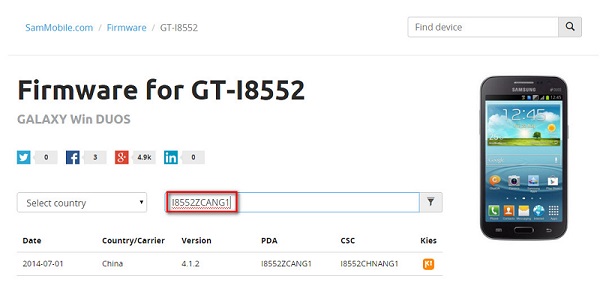
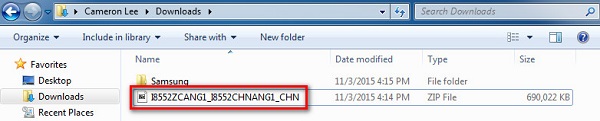
Step 2: Now download a suitable firmware for your device in the form of a zip folder which you can open and store on your desktop.
download suitable firmware
Make sure the file is .bin, .tar or .tar.md5 only as these are the only file types recognized by Odin.
firmware zip file
firmware md5 file
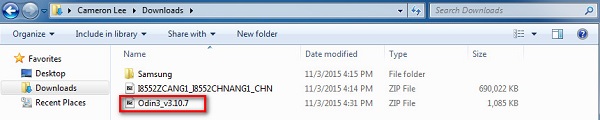
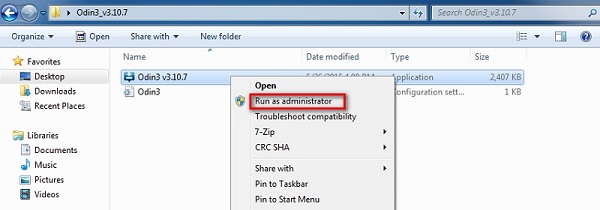
Step 3: In this step, download the latest version of Odin on your PC and move it to the desktop and then right click on the downloaded Odin file to select “Run as Administrator”.
download odin
run as administrator
Step 4: Now boot your dead device to Download Mode by pressing the power, volume down and home button together. When the phone vibrates, release the power button only.
boot in download mode
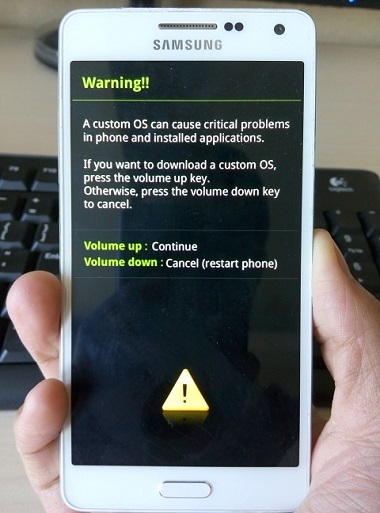
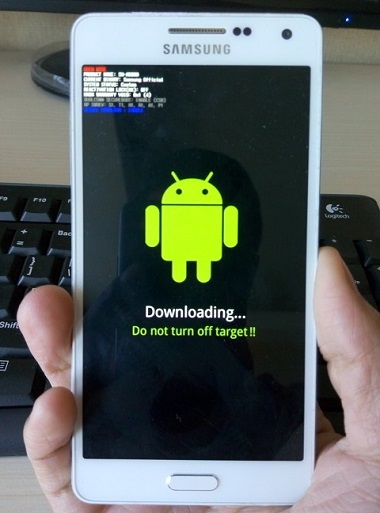
Step 5: Gently press the volume up button and you will see the Download Mode Screen.
android download mode
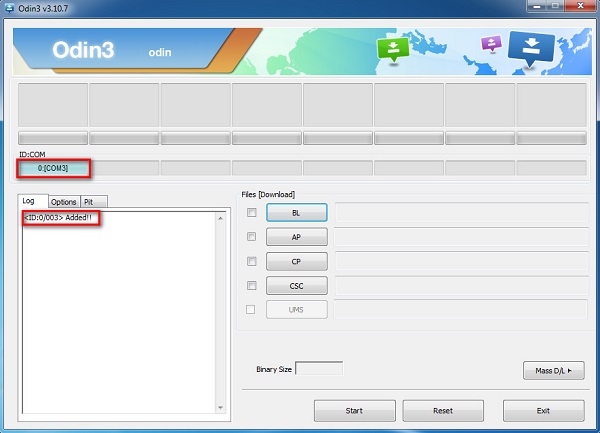
Step 6: Now you may use a USB to connect your device to the PC. Odin will recognize your device and in the Odin window you will see a message saying “Added”.
connect android device
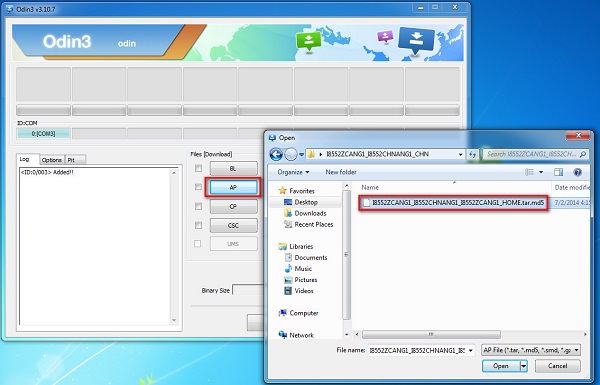
Step 7: In this step, find the tar.md5 file you downloaded by clicking on “PDA” or “AP” on the Odin window and then click “Start”.
open md5 file
Finally, once the flashing process is complete, your Samsung Galaxy phone will reboot and start normally and you may see a “Pass” or “Reset” message on the Odin window on the PC.

Part 3: How to flash MTK Android dead phone with SP Flash tool?

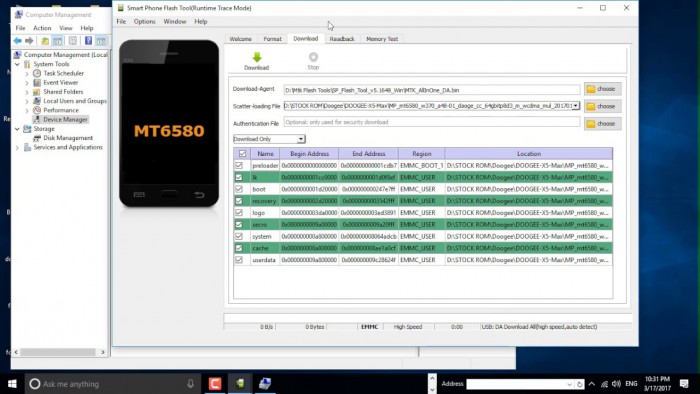
SP Flash tool, also know as SmartPhone Flash tool is a popular freeware tool used to flash custom ROM or firmware in MTK Android phones. It is a very successful tool and is extremely easy to use.
Let us look at the steps given below to learn how to flash dead Android phone using PC with the help of SP Flash tool.
Step 1: To start with, download and install the MTK driver on your on your PC and then download the ROM/firmware you wish to use for flashing purpose.
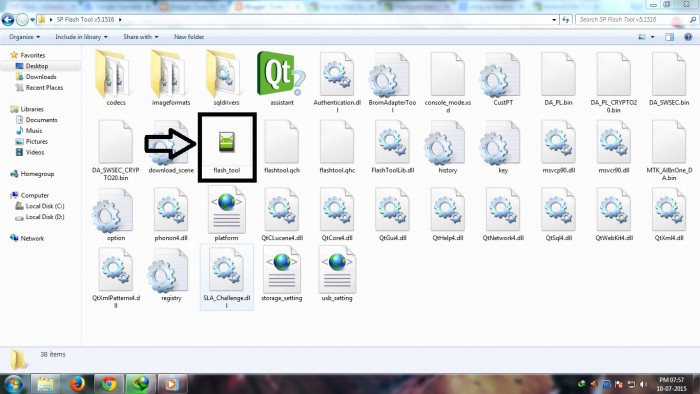
Step 2: Once done, you should download the SP Flash tool and extract it on your PC and move on to launch the Flash_tool.exe file to open the SP Flash tool window.
download sp flash tool
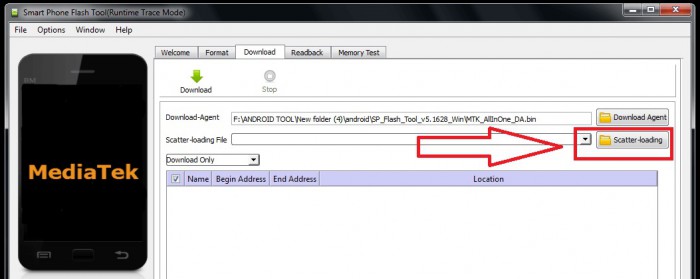
Step 3: Now, on the SP Flash tool window, click on “Download” and select “Scatter loading”.
scatter loading
Step 4: The last step would be to locate the file downloaded by you and click “Open” and then finally, select “Download” on the SP Flash tool window.
load the downloaded file
After completing the above steps, connect your dead device to the PC with a USB cable and wait for it to get recognized. The flashing process will take a few minutes to finish and then you will you will see a green circle indicating “OK Download”.
That's it! Now simply disconnect your phone and wait for it to reboot.

Part 4: How to flash Nokia dead phone with Phoenix tool?

Phoenix tool, better known as PhoenixSuit, is a tool similar to SP False tool and Odin. It works very well with Nokia phones and is the best answer to “How to fix dead Android phone?”, “How to flash dead Android phone using PC?”, etc.
Let's look at the steps of flashing Nokia dead phone with Phoenix tool.
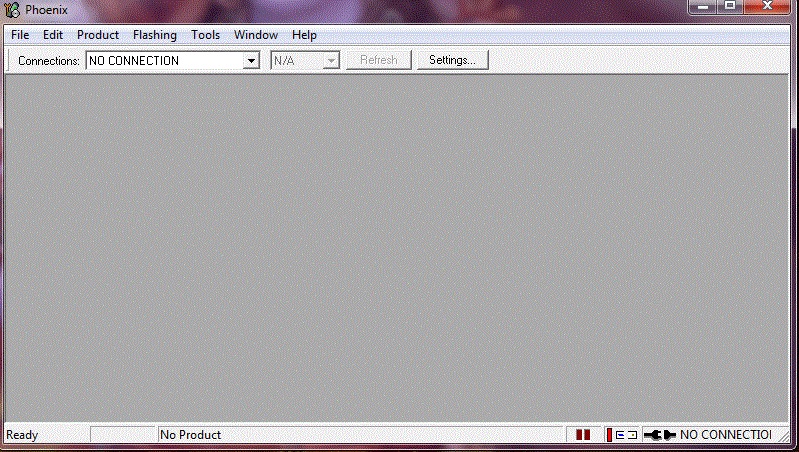
First, download and install Nokia PC Suite driver on your PC. Then you will need to download PhoenixSuit tool and then launch it.
nokia pc suite
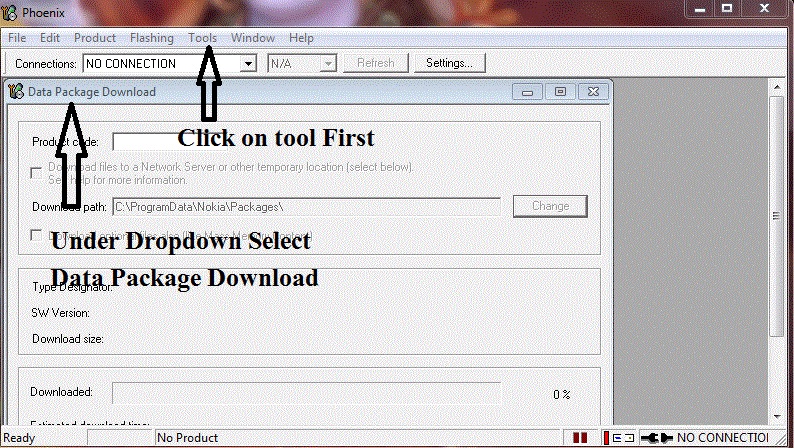
Now, on the toolbar, click “Tools” and select “Data Package Download” from the drop-down list.
data package download
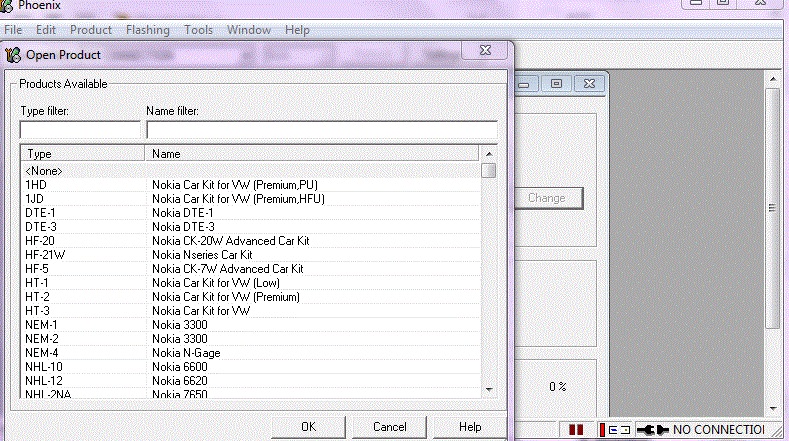
Then move to download the firmware for your dead Nokia phone and save it in a new Folder. Once done, go back to the Phoenix tool window and click on “File” and select “Open Product”.
open product
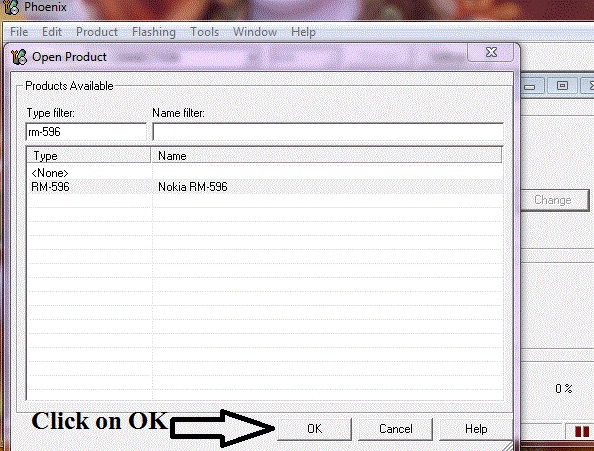
Simply, feed in the details and then click “OK”.
check the details
After this, click on “Flashing” and select “Firmware update” and then browse to select the appropriate product code and then click “OK” again.
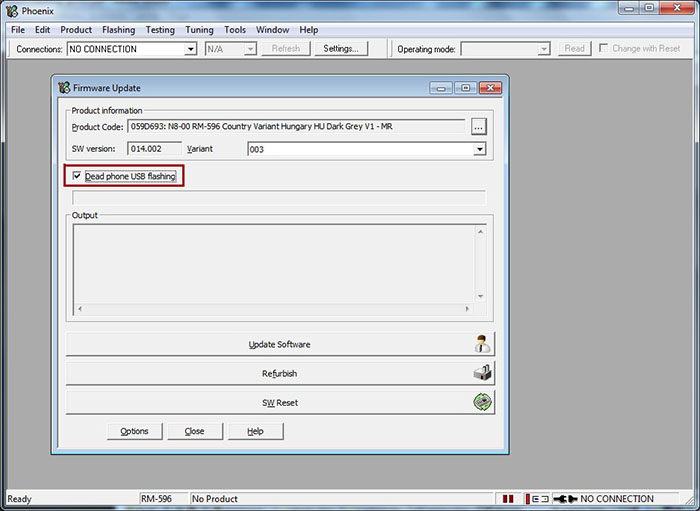
Then move on to select “Dead Phone USB Flashing” from the Firmware Update Box.
dead phone usb flashing
Lastly, just click on “Refurbish” and connect your phone to the PC using a USB cable.
That was it, the flashing process may take up to a few minutes after which your dead Nokia phone will restart automatically.
A dead Android phone might be the cause of worry but the techniques given above to flash your dead Android device safely are very helpful. These methods have been tried and tested by users all over the world and thus, we recommend them to you. If your phone is dead or has become unresponsive, do not panic. Depending on your phone’s brand, here are ways to guide you about how to fix the dead Android phone and how to flash dead Android phone using PC.
Carefully follow the instructions given and you will be able to reboot your dead Android phone successfully.

          with Bem T. on the system everything is ok

Been T. - System Repair (Android)

One click solution to flash Samsung Galaxy
  • High success rate in fixing Samsung Android devices.
  • All latest Samsung devices are supported by this software.
  • One click operation of this tool helps you how to flash Samsung Galaxy easily.
  • Being very intuitive, it doesn’t need you to be tech savvy to use this software.
  • It is one of its kind and first one-click Android repair software in the market.


Featured post

What is affiliate marketing?

Affiliate marketing is a performance-based marketing strategy where businesses reward affiliates for bringing them customers through the aff...

Popular Posts